
Discord Embed Preview
Preview the embed Discord builds for a shared link, including its accent colour. Runs in your browser.
- No account needed. Import a live URL or type it in
- Discord preview updates instantly
- Copy escaped HTML metadata in one action
Page metadata
Discord reads: og:title, og:description, og:image, og:site_name, theme-color, twitter:card
 Discord
PostlyBee
Plan and schedule social content with PostlyBee
Create, customize, preview, and schedule social media posts from one collaborative workspace.
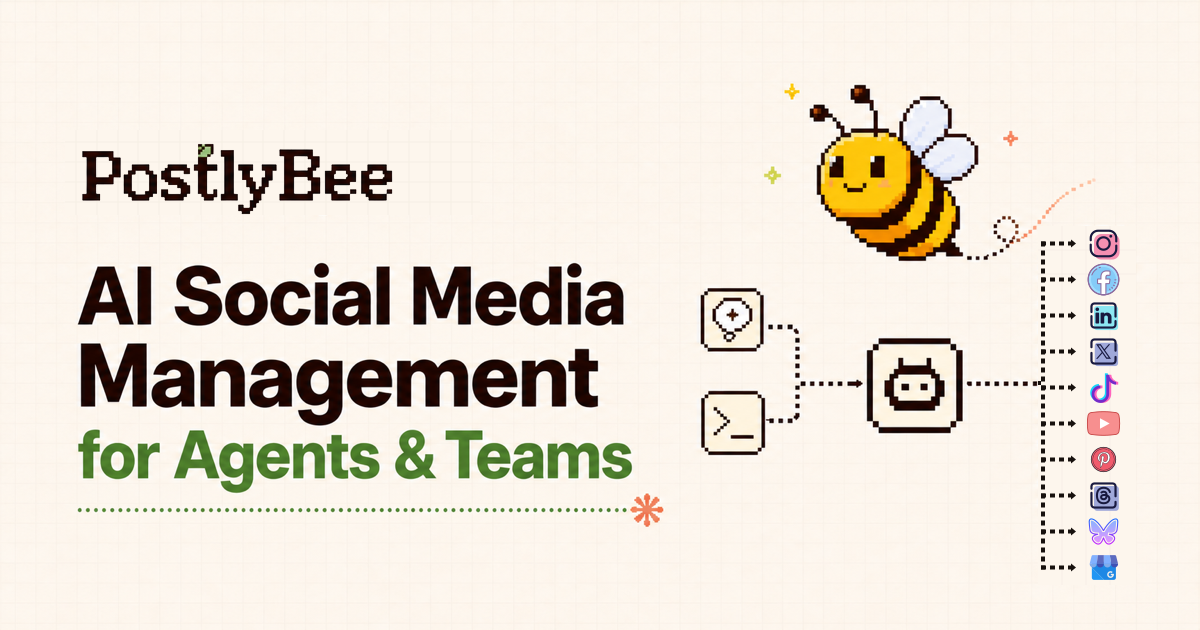
Image: 1200 × 630 px. Set twitter:card to summary_large_image for a large image. Otherwise Discord shows a small thumbnail.
Generated HTML
<meta property="og:title" content="Plan and schedule social content with PostlyBee" />
<meta property="og:description" content="Create, customize, preview, and schedule social media posts from one collaborative workspace." />
<meta property="og:image" content="https://postlybee.com/og-image.png" />
<meta property="og:site_name" content="PostlyBee" />
<meta name="theme-color" content="#ffc933" />
<meta name="twitter:card" content="summary_large_image" />From link to published
Check it here, publish to Discord with PostlyBee
The same editor you use for every post, in a few steps.
Enter any public page URL and PostlyBee reads its title, description, and image for you, so there is nothing to retype.
Import from a live page
Title
Description
Image
Practical guide
Make links stand out in a busy server
Embeds are the first thing people in a server see about a link. A coloured accent bar, a strong title, and a large image make the post easy to spot among plain messages.
Discord caches embeds for a while. When you tweak tags, test with a new URL or a query string to see the change quickly.
Privacy: Text you type stays in this browser tab. If you import a URL, PostlyBee downloads that public page once to read its tags and does not store it. Your browser loads the preview image directly from its address.
- 01
Choose an accent colour
Set theme-color to a hex value that matches your brand.
- 02
Add title, description, and image
Use twitter:card with summary_large_image for the large image layout.
- 03
Copy and test
Paste the tags into your page and send the URL in a Discord channel.
Pro tips
Pro tips for Discord metadata
theme-color sets the accent bar
The <meta name="theme-color"> value colours the strip on the left of the embed. Pick a brand colour so the embed is recognisable.
Large image needs a card tag
Set twitter:card to summary_large_image to get a big image. Without it Discord usually shows a small thumbnail beside the text.
Descriptions are cut short
Discord truncates long descriptions in the embed. Put the key sentence first and keep the rest brief.
FAQ
About the Discord Meta Tags Preview
Know what the preview measures, what it does not guarantee, and how your input is handled.
Ready to move from preview to publishing?
Use this free tool without an account, then bring the finished work into PostlyBee to customize, schedule, and track the campaign.
Start scheduling with PostlyBee